DOWNLOAD IT:
Logic Pro 7.1.4 to Atmos Object Bed.zip
(It’s just a Logic Pro project and a simple plug-in. It won’t explode your computer.)
SO, WHAT’S IT FOR ALREADY?
This project manually creates an Object Bed in Logic for 7.1.4 audio.
With an Object Bed, you can:
- Treat corner height channels (.4) as part of your Atmos bed, upon which you can overlay your own 3D object tracks, should you wish.
- Listen to any 7.1.4 audio source in headphones, such as Atmos tracks on Apple Music, with Logic’s Dolby (binaural) Renderer, with access to its Near/Mid/Far binaural render modes, as an alternative to Apple Spatial Audio.
- Hear how a 7.1.4 source will sound on a smaller speaker layout.
- Adjust a track’s individual 7.1.4 channel levels, e.g. boost or cut the center channel.
- Apply plug-ins to individual channels, or the 7.1.4 signal as a whole.
- I dunno, use your imagination.
Several other DAWs provide an Object Bed feature, but Logic does not. It gets around the Atmos maximum bed (non-object) size of 7.1.2, which doesn't include top corner speakers.
I DON’T WANNA READ A FUCKING BOOK CAN YOU JUST TELL ME WHAT TO DO
Fine, okay, chill.
This is gonna take a little while to do, though much of it is a one-time affair, and then you’re good to go for the future. So, get a snack, breathe, and settle in.
I put some BIG BOLD TEXT when you get to the point that you don’t have to read any further if you ain’t feeling it.
ONE-TIME SETUP:
- Quit Logic Pro.
- Download Logic Pro 7.1.4 to Atmos Object Bed.zip, and unzip it.
- Open Surround Channel to L-R.pkg, and let it install.
- (It’s a dead simple plug-in that I vibed up. All it does is reroute one or two surround channels to left and right. You’ll have to trust me that it’s not doing something horrible, but, if you don’t, I’ve included source code; feed the whole tiny zip to an AI and ask if it looks kosher. Because LLM's are always right.)
Open Logic Pro 7.1.4 to Atmos Object Bed.logicx.
In File > Project Settings > Audio, ensure the surround format is 7.1.4.
Open Logic > Settings > Audio > I/O Assignments > Input.
Under Surround, set “Show As” to 7.1.4.
Ensure channels 5/6 are assigned to L.mid and R.mid, and 7/8 to L.surround and R.surround.
Confirm the others as well: 1/2:L-R, 3:C, 4:LFE, 9/10:Lt-Rt, 11/12:Lts-Rts. Like this:
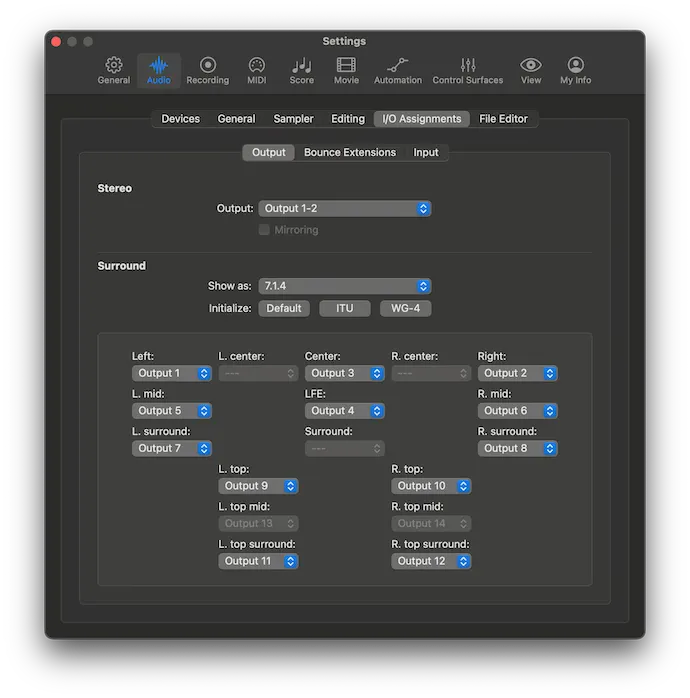
Click the Output tab, and ensure the same assignments.
(These channel assignments are the SMPTE standard for 7.1.4 speaker layouts; the “ITU” preset button incorrectly reverses 5/6 and 7/8.)
If you want to pipe in 7.1.4 audio from another app, like Music, rather than using an interface or a pre-existing multichannel audio file:
- Get and install BlackHole 16ch ($10, or, per the author, “do something extra nice for someone today” if you can’t afford $10).
- Choose BlackHole 16ch for system audio output.
- Set the input and output level for BlackHole 16ch to maximum in /Applications/Utilities/Audio MIDI Setup.
If you’re bringing in audio from an app via BlackHole 16ch, or you're using a multichannel interface for input, then also:
- Open /Applications/Utilities/Audio MIDI Setup.
- In the left column, click BlackHole 16ch, or your interface.
- Reconfirm the output and input volumes are at maximum, if applicable.
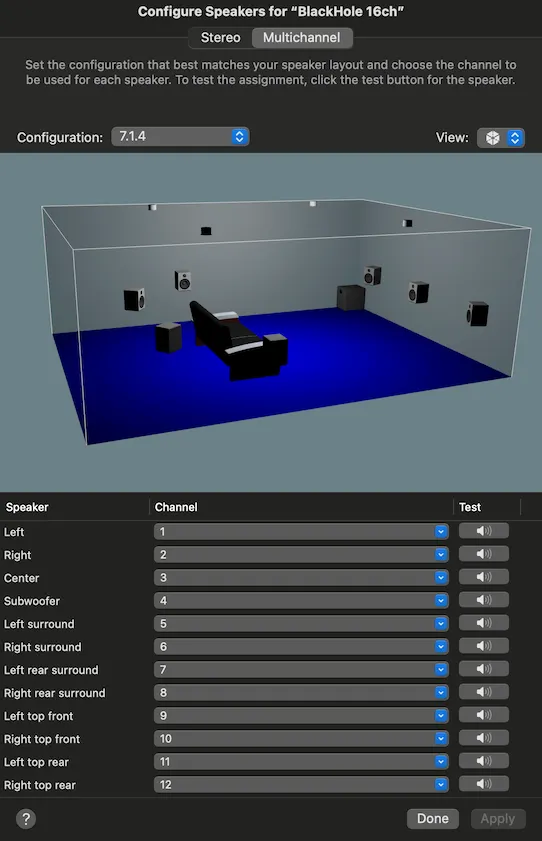
- Click Configure Speakers.
- Set Configuration: 7.1.4.
- Ensure all the speakers are set to channels 1 through 12 in sequence, like so:
 {width=436px}
 - If you’re using an interface, ensure you’re feeding its numbered inputs as shown.
- If Apply is clickable, meaning you needed to change something, click it.
- Click Done.
- Quit Audio MIDI Setup.
Great job! That’s it for the one-time shit. You earned a break, soldier.
USING THE 7.1.4 TO ATMOS OBJECT BED:
- Ready to rock?
- Open Logic Pro 7.1.4 to Atmos Object Bed.logicx if it isn’t already.
- Set Logic > Settings > Audio > Output Device according to your monitoring setup:
- If you're monitoring using binaural audio in your headphones, choose your headphones. (This is gonna be most of you. It's me, most of the time, anyway.)
- Or, if you’re set up for multispeaker monitoring, choose your multichannel output interface.
- Or, if you want to binauralize with an external application like Virtuoso Standalone, install BlackHole 64ch, and ensure its input and outputs are set to maximum in /Applications/Utilities/Audio MIDI Setup; then set Logic’s output device, and your binauralizer software’s input device, to BlackHole 64ch.
- Set Logic > Settings > Audio > Input Device based on what you’re running through the harness:
- If you’re working with an existing 7.1.4 WAV or AIFF file, choose “None”; put the file on the track labeled “7.1.4 audio”.
- If you’re bringing in audio from an app like Music, choose “BlackHole 16ch”.
- If you have a multichannel audio interface and want to use that as a source, select it, and ensure what you are sending to its channel inputs match what’s Logic Pro > Settings > Audio > I/O Assignments > Input, and also /Applications/Utilities/Audio MIDI Setup, per the one-time setup steps above.
- Open the Atmos plug-in on the Master Track, and double check that “Monitoring Format” is, for headphones, set to “Dolby Renderer” or “Apple Renderer” (or, if you’ve got a multispeaker setup, choose the corresponding speaker layout).
- Play your 7.1.4 audio, depending on where it's coming from:
- If you’re playing back a 7.1.4 region on the “7.1.4 audio” track, just play it.
- If your audio source is an interface, record-enable the “7.1.4 audio” track in Logic, and play your external audio source.
- If you’re playing 7.1.4 audio from an app (via BlackHole 16ch):
- Double-check that BlackHole 16ch’s input and output are set to maximum in /Applications/Utilities/Audio MIDI Setup.
- Set the app’s output device to BlackHole 16ch; if it doesn’t offer output device selection, then set system audio output to BlackHole 16ch.
- If you’re playing 7.1.4 from Music.app, set the Music volume slider to maximum, and ensure Music (menu) → Settings → Playback → Spatial Audio → Dolby Atmos is set to “Automatic”.
- Record-enable the “7.1.4 audio” track.
- Start the app audio.
- Optional: Add a Level Meter to the “7.1.4 audio” track, beneath the “Ch to L-R” plug-in, to see all those gorgeous channels coming in!
- (The Ch to L-R plug-in on the “7.1.4 audio” track isn’t actually necessary, as it just passes through all channels, but I suggest leaving it at the top of the chain in case you ever want Dolby-format file export, as I’ll explain below.)
- Optional: Open Atmos on the Master track to see your channel objects in 3D space!
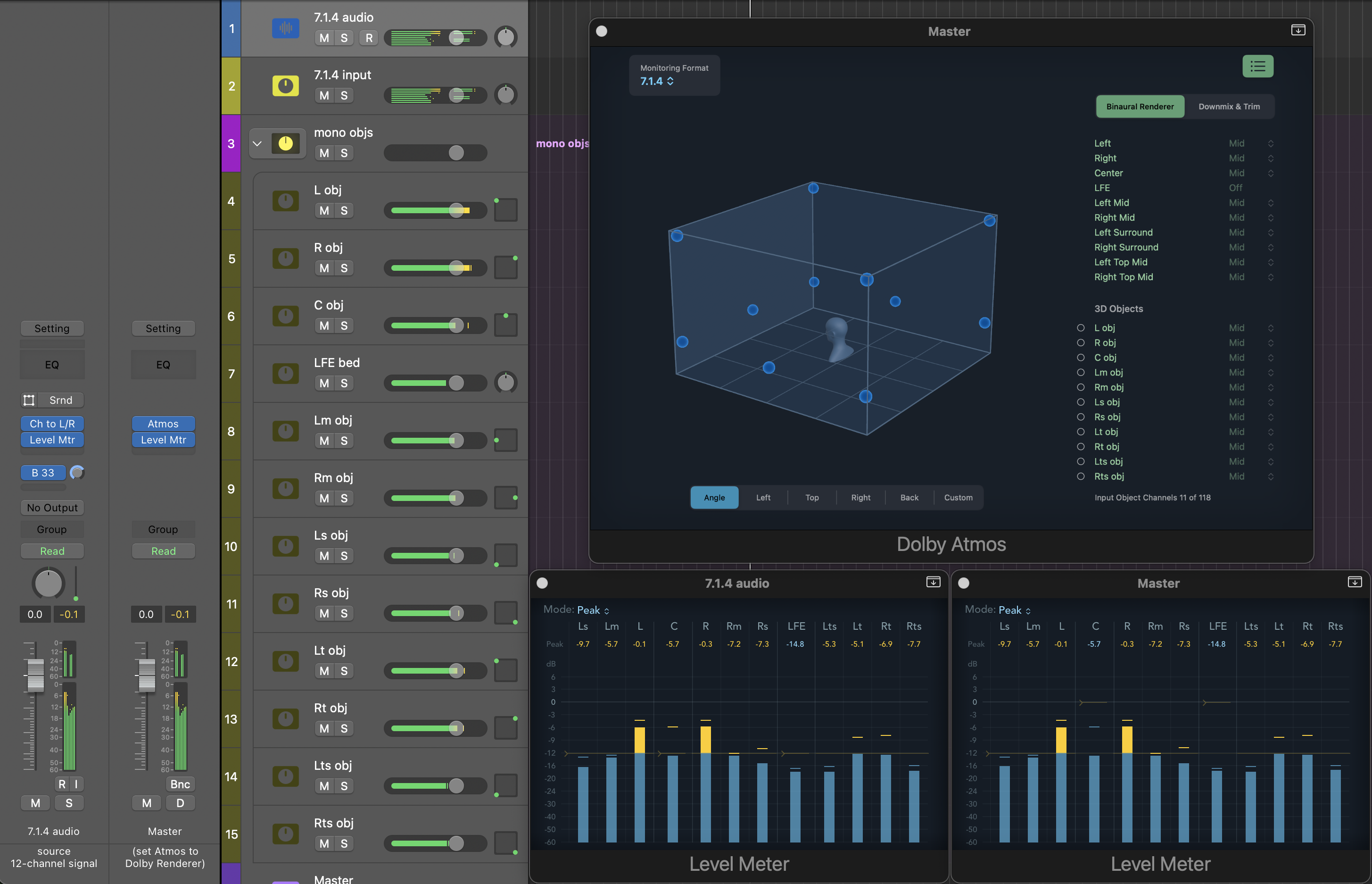
- If you only see L and R:
- If you’re playing back a file you put into the project, but getting only L and R, make sure the file is multichannel; QuickTime Player can tell you that in its inspector, and so can the excellent tool MediaInfo.
- If you’re playing from Apple Music, but only getting L and R, make sure you’re playing a track that’s shown as offering Dolby Atmos, and that Atmos is set to “Automatic” in Settings.
- (As of August 2026, TIDAL and Amazon Music don’t offer Atmos on desktop operating systems, and Spotify, dicks that they are, don’t offer Atmos at all. And neither does YouTube or YouTube Music or anyone else. I mean, to be entirely fair to them, these companies don’t have nearly enough money. Long story short is if you want 7.1.4 played into Logic via BlackHole 16ch, you gotta play it from Apple Music.)
- Assuming you don’t have a multichannel speaker setup, put on your cans, and hear all those channels magically transmuted into two-channel binaural headphone audio by the Dolby Renderer (or Apple Renderer).
- Optional: Say, “that’s neat.”
That’s it! Easy fucking peasy, amirite?
🛑 You can stop reading here! I swear! The rest is optional! 🛑
OPTIONAL (BUT USEFUL) STUFF TO TRY, OR AT LEAST KNOW:
Export to a Dolby-native file format (ADM BWF, DD+ JOC, AC-4 L4):
In this project, the default and easiest way of working is to have “Spatial Audio” turned off in Project Settings > Audio, which allows a 7.1.4 surround format to be selected (even as the Atmos plugin and object outputs remain, and function properly).
But, when Spatial Audio is turned off, File > Export > Spatial Audio is dimmed out, meaning you can’t export into Dolby formats. So, what to do if you need those?
- In File > Project Settings > Audio, set Spatial Audio to Dolby Atmos. Logic will complain that it wants to convert plug-ins to 7.1.2, with no option to skip that, so let it do what it wants.
- If you have inserted 7.1.4 plug-ins, they’re gonna get changed to 7.1.2 when you enable Spatial Audio. To make it easier to change them back, insert, at the top of your 7.1.4 strips, Audio Units > IVAN X > Ch to L-R, and set it to "Pass Through All Channels". Its presence enables the strip to operate as 7.1.4 for subsequent plugins. (If you're already in 7.1.2, you can option-drag Ch to L-R from the "7.1.4 input" track.)
- If you are never going to going to switch to 7.1.2 because you never need a Dolby-format export, you can remove the Ch to L-R plugins on the "7.1.4 audio" and "7.1.4 input" tracks, which intentionally do nothing in a 7.1.4 project when set to "Pass Through All Channels".
- (The six Ch to L-R plug-ins on the aux strips using Buses 34 through 39 are performing channel isolation, and aren't set to pass through all channels; leave those alone, or the harness won't work.)
Now you can access File > Export > Spatial Audio! Woo, hoo. (And you can also add new object outputs, rather than having to duplicate and repurpose existing ones.)
If you want to switch back to 7.1.4 in File > Project Settings > Audio, first turn off Spatial Audio, and then the 7.1.4 option will become available.
Nota bene: In general, if you’re receiving live input (rather than playing a file), you want to be in 7.1.4. But, if you are in 7.1.2, you’ll find that the height corner (.4) channels don’t come through. To fix that, you can perform a janky but reliable move that exploits an apparent Logic bug: play a 7.1.4 audio region on every track that’s record-enabled for input, and stop it mid-region, or within a couple of seconds of the playhead exiting the region. You can even play a silent 7.1.4 region (which I’ve provided). The height channels can now be used for input.
Create a new, empty, harness-less project containing your Object Bed:
If you export an ADM BWF file, like I told you about in the above section, guess what? You can create a whole new Logic Project from that, under File > Import > Create Project from ADM BWF!
Then you’ll have an shiny new 7.1.2 project, with Spatial Audio enabled, the way Dolby and Apple have designed it to work. You'll see 11 non-LFE channels as mono objects at the correct speaker positions, plus the LFE channel as an ordinary non-object bed track.
You can alternatively make a project with 4 objects for the top corners, and the 7.1 channels in one track as traditional Atmos bed channels, as I’ll explain shortly.
- If you do create a project that has 7.1 bed channels + 4 height objects, you can set that project’s format to 7.1, while leaving Spatial Audio enabled, in order to avoid a bug in the Surround Balancer for height-format projects that alters the signal of all non-LFE channels even when its parameters are set to neutral/zero values, which are supposed to pass through all channels with exact transparency.)
Try other 7.1.4-to-Atmos methods in Project Alternatives:
Because, apparently, I can’t fucking help myself, there are in fact four Object Bed harness projects, using somewhat different methods of accomplishing the same goal. You can find them under File > Project Alternatives.
By default, if you don’t adjust their panners, or add plug-ins to channel outputs, all the alternatives produce the same result on the Master track. (One produces a different result when exporting to a Dolby-format file, as described above.)
Project Alternative “mono objs” is the method which most closely matches the official Dolby Object Bed description: all non-LFE channels are transformed into mono objects, and LFE remains a traditional, non-object bed track.
If you want to save one of the alternatives as its own standalone project, use File > Export Alternative as Project.
The four alternatives are: mono objs: Non-LFE channels are mono objects; LFE is a traditional bed channel, as Atmos requires.
st+mono objs: All corners are stereo objects; C/Lm/Rm are mono objects; LFE is a traditional bed channel: 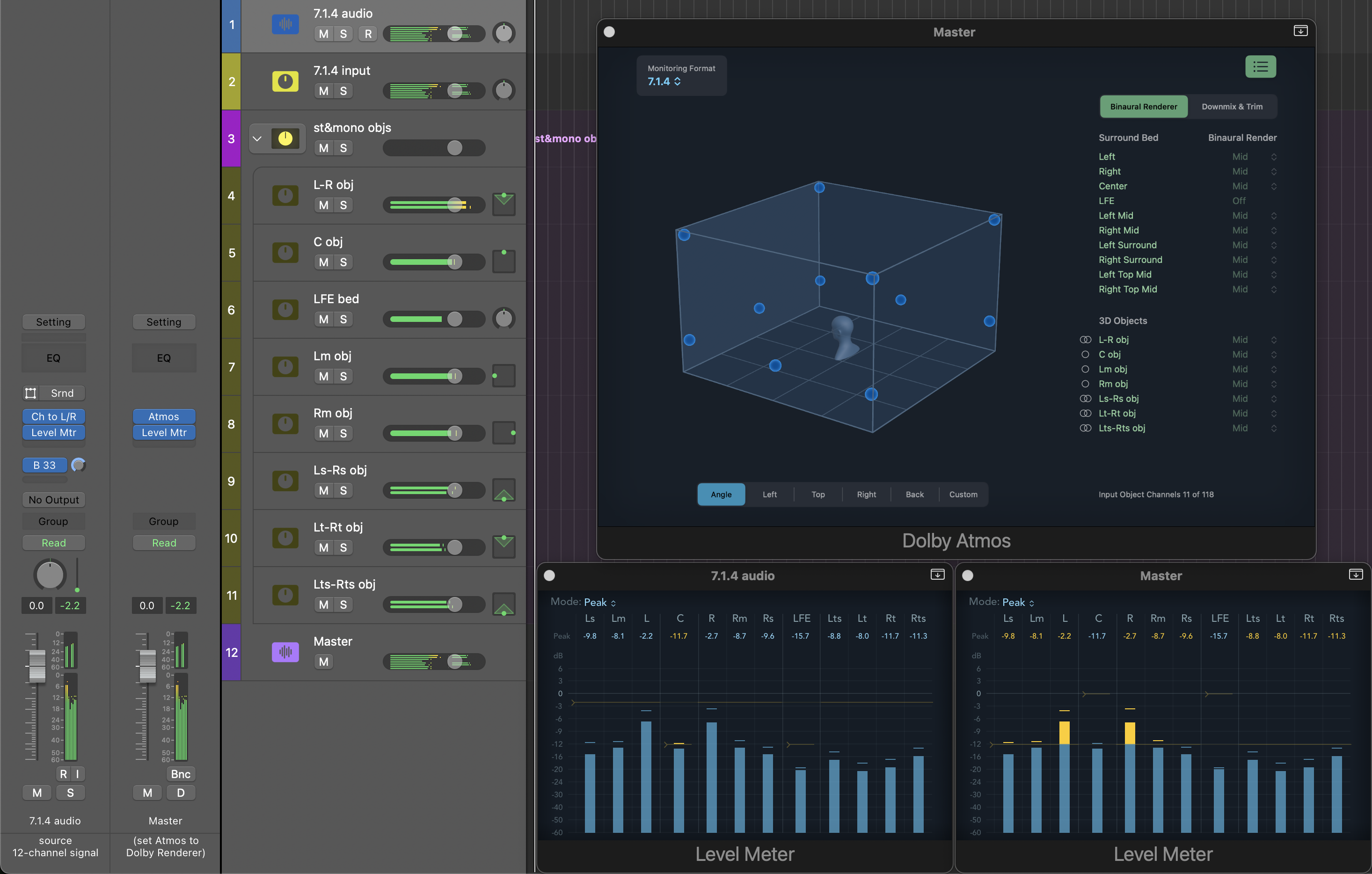
top-only objs: The four top corners are stereo objects; the 7.1 channels are traditional bed channels.
Extra stuff you might wanna know about its structure, and Dolby-format exports:
- There is a bug in the Surround Balancer for height-format projects which slightly changes the signal of all non-LFE channels even when set to neutral/zero values. So, in “top-only objs”, to avoid the Surround Balancer, the 7.1 channels are broken out into three stereo pairs (L-R, Lm-Rm, Ls-Rs) and two mono channels (C, LFE), and sent directly to stereo channel pairs or mono channels on the Master track.
- If you want a Dolby-native file export (e.g. ADM BWF), in which only the top corners are objects, and the 7.1 channels are a single track that with traditional Atmos bed channels, you can use “top-only objs”, but you’ll first need to jump through some hoops to prevent the export from coming out fucked up:
- On the “7.1.4 audio” track, and any other 7.1.4 tracks you may have added:
- Ensure the Ch to L-R [7.1.4] plug-in, set to Pass Through All Channels, is at the top of the track’s plug-in chain. (If it's not there, option-drag it from the "7.1.4 input" track, or insert it from Audio Units > IVAN X > Ch to L-R.)
- Enable File > Project Settings > Spatial Audio, which will switch to 7.1.2 (as described above).
- Set the output to Surround.
- Open the Surround Balancer, and:
- Ensure its parameters are all set to zero.
- Beware of Angle, which decreases every time you open the panner, due to yet another Logic bug.
- Mute the two height speakers on the outer left and right sides
- Ensure the seven other speakers are unmuted.
- Ensure that the LFE control is set to 0.0 dB.
- On the “7.1.4 input” track (Bus 33), disable the sends to Buses 34, 35, 36, 37.
- Ensure its parameters are all set to zero.
- Now you can export an ADM BWF or other Dolby-format file!
- (And, even though you’re using the height-format Surround Balancer, the ADM BWF export won’t have any signal alterations to the channels because it seems Logic's Dolby-format file export uses a different mechanism than than the usual signal routing. Go figure.)
- (This is all necessary because there’s another bug — Logic is full of bugs, in case you hadn’t noticed — where the Dolby-format file export incorrectly replicates one channel across several when your project has a stereo or mono strip that outputs or sends to a stereo or mono channel output, which is exactly what “top-only objs” requires to get around the height-format Surround Balancer bug I just told you about. Did I mention that Logic is full of bugs?)
- On the “7.1.4 audio” track, and any other 7.1.4 tracks you may have added:
You can see the objects in the Atmos plugin are only in the top corners, despite the same output: 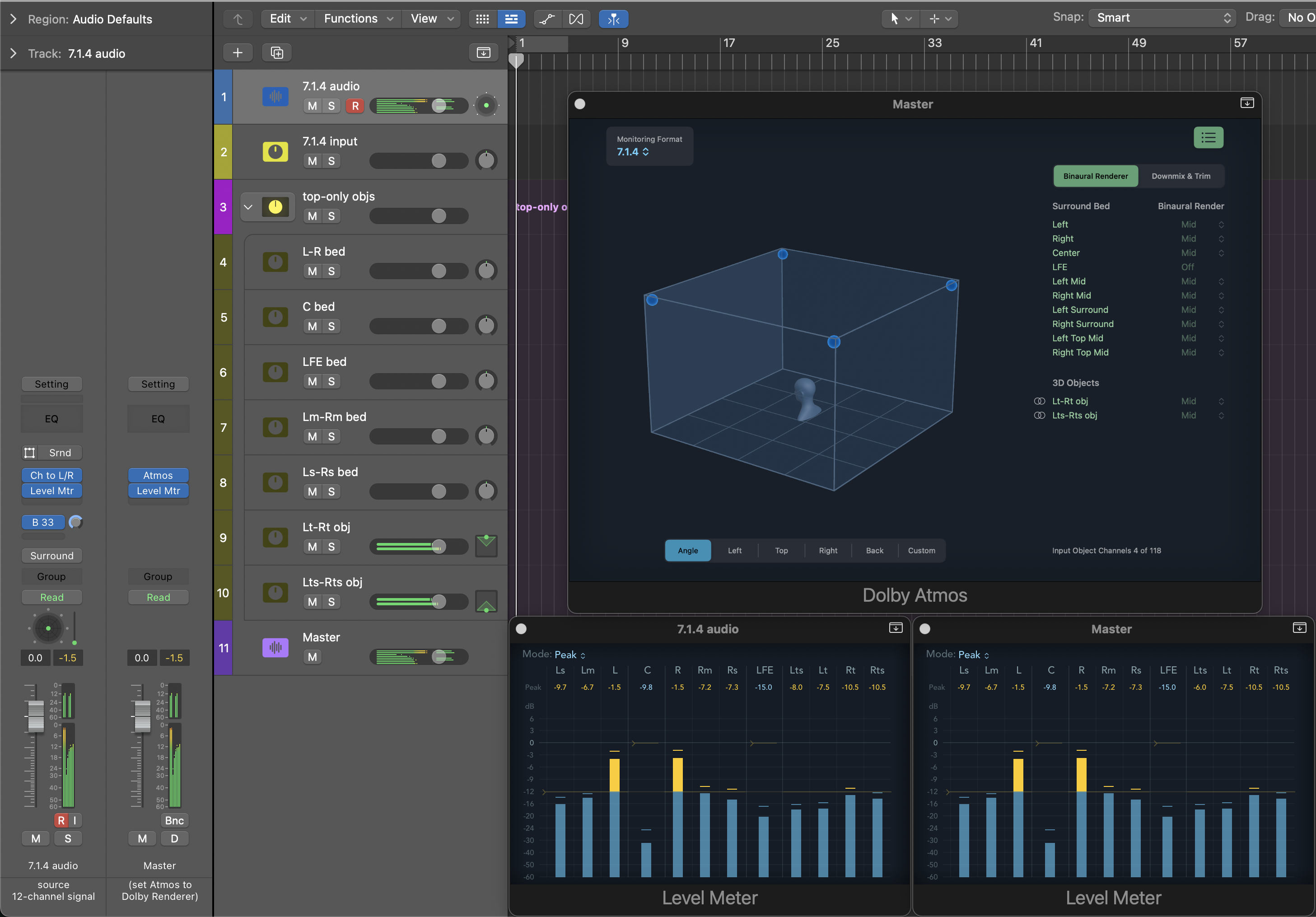
all methods: All of the above in a single project; you unmute the one you want to use, and mute the other two. 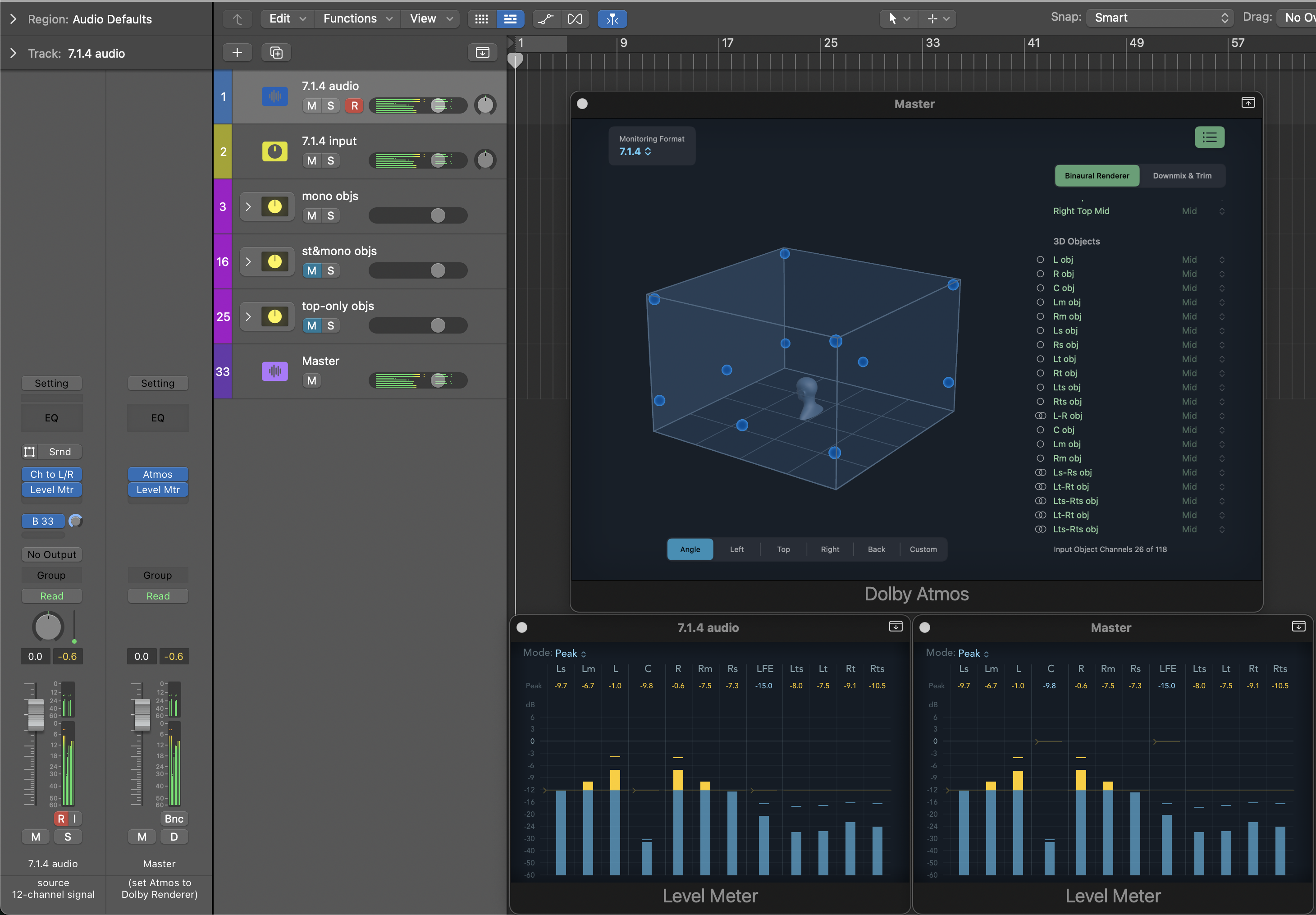
"All methods" lets you see the routing for all three methods, should you be so motivated:
- The first two lines of sends on the aux strips for Buses 34-39 correspond to "mono objs"; the second two lines to "st+mono objs"; the third two to "top-only objs".
- The disabled sends on the aux strips for Buses 34-39 are for consistency with the standalone Project Alternatives; don't enable them, as they are redundant with sends already on the strip.

Set the Near/Mid/Far binaural render modes in Dolby Renderer:
Screw around with the renderer’s Near/Mid/Far settings (what Dolby calls binaural render modes) for each channel object under the “3D Objects” section, for a larger or smaller sensation of the sound around your head. (Ignore the “Surround Bed” section.)
- If you are using the “top-only objs” Project Alternative, then instead adjust the 7.1 channels under “Surround Bed”, and the top corner channel pair objects under “3D Objects”.
- If you are using the “all methods” Project Alternative:
- The first 11 channels under “3D Objects” apply to the “mono objs” folder stack.
- The next 7 channels / channel pairs apply to the “st+mono objs” folder stack.
- The final 2 channel pairs, plus the 7.1 channels under “Surround Bed”, apply to the “top-only objs” folder stack.
If you like what you hear, and want to be able to take it with you, you can perform a stereo bounce like any other project — just remember to name it so that you remember it’s binaural audio for headphones, not standard stereo.
Dolby Renderer has an always-active, seemingly hidden limiter. If you want to avoid engaging it, do one of these so that Master stays doesn’t peak higher than -0.1 dB:
- Lower the fader on “7.1.4 input”.
- Lower the fader on the “input trim” strip at the right edge of the mixer. (It’s a VCA fader for “7.1.4 input”.)
- If you want "input trim" in the track view, control-click its name and choose "Create Track" from the menu that pops up.
- Insert a Multichannel Gain plug-in on the track called “7.1.4 input”, and reduce its master fader (or individual channel faders, should you wish).
Use plug-ins and faders on individual channels (or stereo channel pairs):
- If you open the mixer, and unfold the output strip folder stack, then you can add plug-ins, move faders, and adjust panners. For example, If you think some song’s center channel is too loud, or not loud enough, just tweak the fader. Choose the Project Alternative that suits you:
- If you want to work with every channel separately, use "mono objs".
- If you prefer to keep the eight corner speakers as four stereo pairs, use “st&mono objs”.
- If you want corners and Lm-Rm as a stereo pair, use “top-only objs”.
Verify that your source signal reaches Atmos untainted:
- You can verify that your source reaches the Atmos plug-in without changes:
- Set the Monitoring Format in the Atmos plug-in to 7.1.4.
- Add a Level Meter to the “7.1.4 input” track.
- If there isn't one there already, add a Level Meter beneath the Atmos plug-in.
- If you have not adjusted gain or otherwise processed the signal anywhere in the path, the level meters should match when playing audio, like in the images above under Project Alternatives.
Send any mono track, stereo track, or 7.1.4 Surround track, to Atmos:
- There’s nothing magical about the “7.1.4 audio” track. You can send one or more of your own Surround tracks to the same bus, and it will be processed by the Atmos plug-in in the same way:
- Optional: I suggest you add, at the top of your surround track, Audio Units > IVAN X > Ch to L-R > 7.1.4, and set it to “Pass Through All Channels”. This will protect the track's 7.1.4 surround format if you need to change the project to 7.1.2 for Dolby-native file export.
- Send a 7.1.4 signal to Bus 33, Post Fader at 0.0 dB, rather than assigning Output.
- (A Post Fader send avoids the bug in the height-format Surround Balancer which alters the signals on all non-LFE channels when they should be passed through transparently.)
- If you want to put a separate single mono track, or stereo track, on the Object Bed:
- First ask yourself whether you really want it as part of the Object Bed harness versus just using the 3D Object Panner. If you use the exact speaker position for a channel or channel pair (see the appendix at the end for position values), it’s functionally the same thing with less headache.
- But, if you really do want to run a mono track through the harness:
- For a non-LFE channel:
- Add a 7.1.4 Multichannel Gain plug-in at the bottom of your channel strip.
- In Multichannel Gain, mute all but the wanted channel.
- Send to Bus 33, Post Fader, at 0 dB.
- (When the signal changes format from mono to 7.1.4 upon reaching the Multichannel Gain plug-in, the mono channel is duplicated to all the non-LFE channels, so you’re allowing just the one you want through.)
- For LFE:
- Set output to Bus 33 (or use a Post Pan send at 0 dB)
- Mute all speaker icons around the panner.
- Set the LFE fader to 0 dB, unless you want it at some other value.
- Do not insert Ch to L-R, Multichannel Gain, or any other 7.1.4-aware plug-in on a mono track intended to output to LFE. You need the mono signal to reach the Surround Balancer for LFE to pass through.
- For a non-LFE channel:
- And, if you want to run a stereo track through the harness:
- Add two sends, Post Fader at 0 dB, to two new aux strips, one of type Left, and one of type Right.
- Handle each aux strip as a mono track, as described above.
- Nota bene: Using Multichannel Gain and a Post Fader send avoids the probably inaudible signal-altering bug in the height project Surround Balancer. If you don’t care about the bug, you can just use the Surround Balancer, which is more straightforward:
- For a mono track, set output to Bus 33, and mute all speakers in the surround panner except the one you want.
- For a stereo track, set output to Bus 33, and mute all speakers in the surround panner except the pair you want.
Use the Apple Renderer (Spatial Audio) instead of the Dolby Renderer:
- If you want to compare Dolby Renderer to Apple Spatial Audio, change “Monitoring Format” in the Atmos plug-in to “Apple Renderer”.
- “Apple Renderer” is the binauralizer that Apple normally calls “Spatial Audio”.
- You don’t get Near/Mid/Far controls with Apple Renderer.
- Apple Renderer will sound different on macOS 15 or earlier than macOS 26 or later, even if you’re on the same version of Logic.
- (I think, and so does Reddit, that the 26 and later version sounds meaningfully better.)
- Spatial Audio binaural rendering itself (as opposed to head tracking or Personalized Spatial Audio) is provided by the operating system, so you can use the Apple Renderer with any headphones, not only AirPods/Beats.
- Apple Renderer (according to numerous posts on Dolby’s support forums) converts object tracks into 7.1.4 before binauralizing them, and that’s suggested as well by my own tests.
- So, what you hear with Apple Renderer (or Spatial Audio Monitoring) is the same thing, apart from possible gain differences, as what you get on Apple Music itself when listening on AirPods/Beats with Spatial Audio enabled.
- Because Apple Renderer apparently converts object audio to 7.1.4 before binauralizing, several approaches produce the same binaural audio when you provide 12-channel 7.1.4 audio. These are all equivalent, according to my tests, anyway:
- 7.1.4 → Bus 33 → … → Atmos>Apple Renderer
- 7.1.4 → Bus 33 → … → Atmos>7.1.4 → Spatial Audio Monitoring → Down Mixer [5.1→Stereo]
- 7.1.4 → Spatial Audio Monitoring [no Atmos plug-in required]
- (Down Mixer is optional, but it narrows the 7.1.4 signal carrying only L-R to stereo, as the Apple Renderer in the Atmos plug-in does.)
Public Service Announcement – Dolby Renderer applied to 7.1.4 ain’t the original you hear on TIDAL or Amazon Music:
- Unlike Apple Renderer, Dolby Renderer will sound different in this project compared with TIDAL or Amazon Music for the same track. You can’t reconstruct the original Dolby binaural presentation, because:
- The original project had 3D object tracks that Dolby Renderer apparently binauralizes directly into 3D perceptual space without going through a 7.1.4 phase first. (This is an informed guess based on my own testing, not something I’ve explicitly read, so take it with a grain of salt.)
- You can’t know what the Near/Mid/Far binaural render modes were set to in the original project, and in any case those would have applied to the original object tracks, not 7.1.4 channels-as-objects.
- You can’t know exactly what additional processing TIDAL or Amazon Music may or may not have applied when they created a Dolby binaural version from the Atmos master file (ADM BWF) they received.
- When you use Dolby Renderer in this project, you’re binauralizing the 7.1.4 speaker presentation of the Atmos project, not the original objects. Doesn’t make it bad, and that’s the approach Apple Renderer seems to take, but it does make your Dolby Renderer binaural version different than the official one on TIDAL or Amazon Music.
YEAH OK BUT HOW DOES IT WORK? WHAT DOESN'T IT DO?
The 7.1.4 Object Bed is provided by an empty project that’s a harness, if you will: a bunch of infrastructure and routing and general abuse of Logic’s features to make it easy to direct 7.1.4 audio to the Atmos plug-in on the Master track. (This was easier said than done.)
This project contorts Logic to do stuff it wasn't necessarily designed to, so, no, you're not gonna get certain stuff you might want, like a multi-object balancer for the Object Bed. And you need extra steps for stuff like Dolby-format exports. But hey, the project is free, and Logic is a fraction of the cost of those DAWs plus Dolby software, so, you get what you pay for. Stop complaining.
And, just to be clear: this project does not reconstruct an original Atmos source, nor could it. All it does is route a 7.1.4 signal to the Atmos plug-in.
I’ve tested this project on Logic 11.2.2, 12.2, 12.3.1 and on macOS 15.7.x, 26.5, and 26.6. Because I’m exploiting various stuff I discovered in Logic that Apple doesn’t document or specifically claim to work, I make no promises this thing won’t break on some future macOS or Logic version. (I mean, everything breaks, eventually. Entropy is real.)
APPENDIX (YES, AN APPENDIX): ROUTING PATHS
All the buses this project uses are ensconced in the 33-64 range, so as to keep them visually tucked away in a single bus cluster. Just trying to keep things tidy for you.
routing overview (buses 33-62):
- 33: 7.1.4 input; central dispatch which fans out to the six isolator buses via Post Fader sends
- 34-39: isolator strips which place a channel pair on L-R, then send, Pre Fader, to output buses
- 41-52: mono output buses
- (with "mono objs", I cutely made buses 41-52 numerically correspond to channels 1-12)
- 54-57: stereo output buses for the four corner pairs used by "st&mono objs"; C, LFE, Lm, Rm use mono output buses 43-46
- 59-62: channel pair output buses for the 7.1 bed tracks used by "top-only objs"; Lt-Rt and Lts-Rts use stereo output buses 56-57
mono objs routing flow:
- 7.1.4 source → bus 33 (“7.1.4 in”) →
- bus 34 (“L-R”) → MM (“L-R on L-R”) → Down Mixer [5.1>St] →
- bus 41 (L aux) → Obj (L/R -1; B/F +1; E 0; Sz 0) → Atmos → Master
- bus 42 (R aux) → Obj (L/R +1; B/F +1; E 0; Sz 0) → Atmos → Master
- bus 35 (“C+LFE”) → MM (“C+LFE on L-R”) → Down Mixer [5.1>St] →
- bus 43 (L aux) → Obj (L/R 0; B/F +1; E 0; Sz 0) → Atmos → Master
- bus 44 (R aux) → send to Mono Output 4 → Master
- bus 36 (“Lm-Rm”) → MM (“Lm-Rm on L-R”) → Down Mixer [5.1>St] →
- bus 45 (L aux) → Obj (L/R -1; B/F 0; E 0; Sz 0) → Atmos → Master
- bus 46 (R aux) → Obj (L/R +1; B/F 0; E 0; Sz 0) → Atmos → Master
- bus 37 (“Ls-Rs”) → MM (“Ls-Rs on L-R”) → Down Mixer [5.1>St] →
- bus 47 (L aux) → Obj (L/R -1; B/F -1; E 0; Sz 0) → Atmos → Master
- bus 48 (R aux) → Obj (L/R +1; B/F -1; E 0; Sz 0) → Atmos → Master
- bus 38 (“Lt-Rt”) → MM (“Lt-Rt on L-R”) → Down Mixer [5.1>St] →
- bus 49 (L aux) → Obj (L/R -1; B/F +1; E +1; Sz 0) → Atmos → Master
- bus 50 (R aux) → Obj (L/R +1; B/F +1; E +1; Sz 0) → Atmos → Master
- bus 39 (“Lts-Rts”) → MM (“Lts-Rts on L-R”) → Down Mixer [5.1>St] →
- bus 51 (L aux) → Obj (L/R -1; B/F -1; E +1; Sz 0) → Atmos → Master
- bus 52 (R aux) → Obj (L/R +1; B/F -1; E +1; Sz 0) → Atmos → Master
- bus 34 (“L-R”) → MM (“L-R on L-R”) → Down Mixer [5.1>St] →
st&mono objs routing flow:
- 7.1.4 source → bus 33 (“7.1.4 in”) →
- bus 34 (“L-R”) → MM (“L-R on L-R”) → Down Mixer [5.1>St] →
- bus 54 (St aux) → Obj (L/R 0; B/F +1; E 0; Sz 0; Sp +90°) → Atmos → Master
- bus 35 (“C+LFE”) → MM (“C+LFE on L-R”) → Down Mixer [5.1>St] →
- bus 43 (Left aux) → Obj (L/R 0; B/F +1; E 0; Sz 0) → Atmos → Master
- bus 44 (Right aux) → send to Mono Output 4 → Master
- bus 36 (“Lm-Rm”) → MM (“Lm-Rm on L-R”) → Down Mixer [5.1>St] →
- bus 45 (Left aux) → Obj (L/R -1; B/F 0; E 0; Sz 0) → Atmos → Master
- bus 46 (Right aux) → Obj (L/R +1; B/F 0; E 0; Sz 0) → Atmos → Master
- bus 37 (“Ls-Rs”) → MM (“Ls-Rs on L-R”) → Down Mixer [5.1>St] →
- bus 55 (St aux) → Obj (L/R 0; B/F -1; E 0; Sz 0; Sp -90°) → Atmos → Master
- bus 38 (“Lt-Rt”) → MM (“Lt-Rt on L-R”) → Down Mixer [5.1>St] →
- bus 56 (St aux) → Obj (L/R 0; B/F +1; E +1; Sz 0; Sp +90°) → Atmos → Master
- bus 39 (“Lts-Rts”) → MM (“Lts-Rts on L-R”) → Down Mixer [5.1>St] →
- bus 57 (St aux) → Obj (L/R 0; B/F -1; E +1; Sz 0; Sp -90°) → Atmos → Master
- bus 34 (“L-R”) → MM (“L-R on L-R”) → Down Mixer [5.1>St] →
top-only objs routing flow:
- 7.1.4 source → bus 33 (“7.1.4 in”) →
- bus 34 (“L-R”) → MM (“L-R on L-R”) → Down Mixer [5.1>St] →
- bus 59 (St aux) → send to Stereo Output 1-2 → Master
- bus 35 (“C+LFE”) → MM (“C+LFE on L-R”) → Down Mixer [5.1>St] →
- bus 60 (L aux) → send to Mono Output 3 → Master
- bus 44 (R aux → send to Mono Output 4 → Master
- bus 36 (“Lm-Rm”) → MM (“Lm-Rm on L-R”) → Down Mixer [5.1>St] →
- bus 61 (St aux) → send to Stereo Output 5-6 → Master
- bus 37 (“Ls-Rs”) → MM (“Ls-Rs on L-R”) → Down Mixer [5.1>St] →
- bus 62 (St aux) → send to Stereo Output 7-8 → Master
- bus 38 (“Lt-Rt”) → MM (“Lt-Rt on L-R”) → Down Mixer [5.1>St] →
- bus 56 (St aux) → Obj (L/R 0; B/F +1; E +1; Sz 0; Sp +90°) → Atmos → Master
- bus 39 (“Lts-Rts”) → MM (“Lts-Rts on L-R”) → Down Mixer [5.1>St] →
- bus 57 (St aux) → Obj (L/R 0; B/F -1; E +1; Sz 0; Sp -90°) → Atmos → Master
- bus 34 (“L-R”) → MM (“L-R on L-R”) → Down Mixer [5.1>St] →
OK I'M DONE
Did you enjoy all that? I did. Hope you find it useful, or at least fun.
Questions welcome at ivanx@ivanxmusic.com.